Arduino Basketball Scoreboard
A simple Arduino project that uses an IR sensor to detect when a ping pong ball passes through the hoop and automatically updates the score on a 4-digit TM1637 display.
Date: July 13, 2026
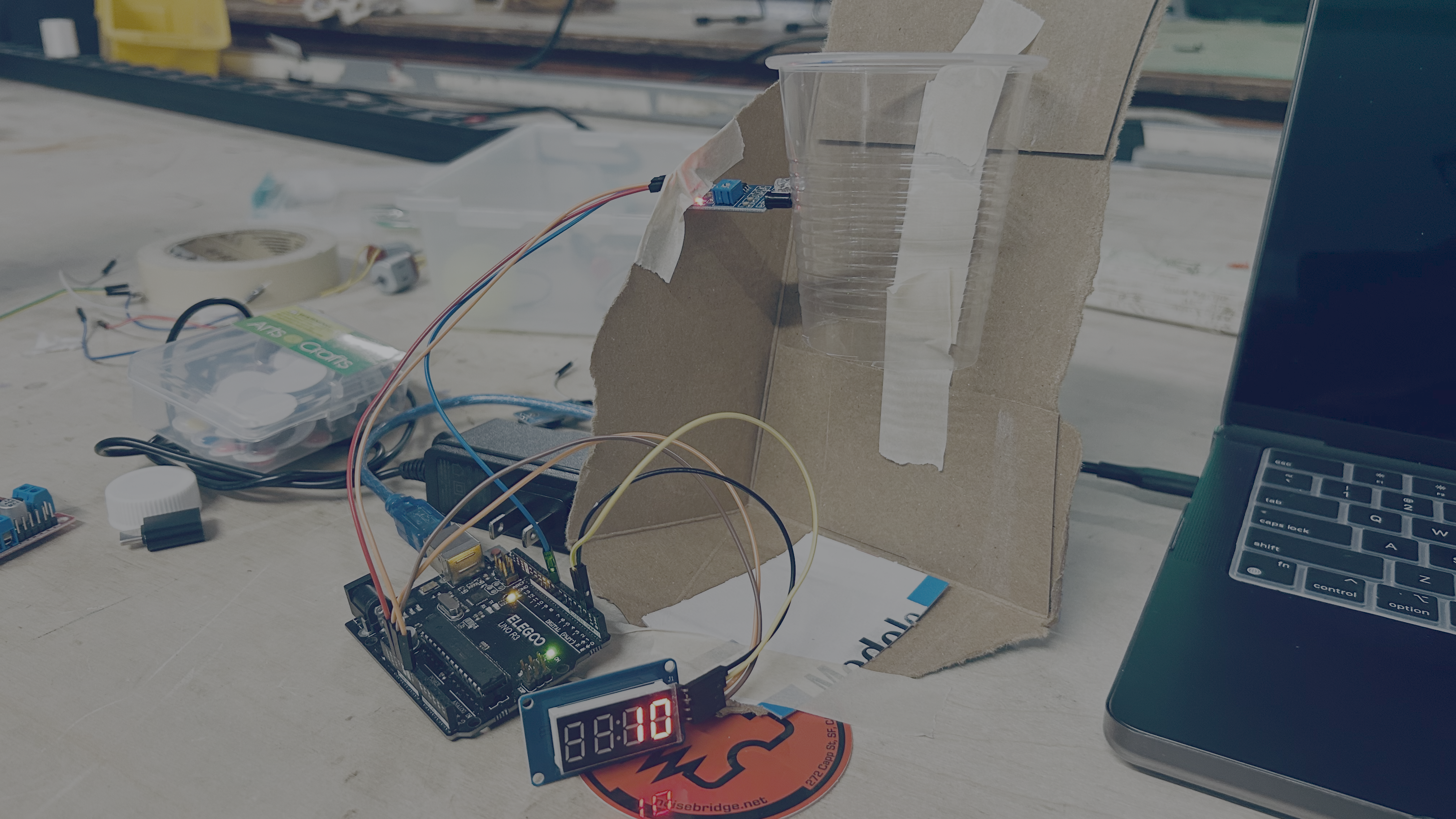
Project Photo
Video
What it Does
When a ping pong ball passes through the hoop, the IR sensor detects it and the Arduino increases the score by 2 points. The current score is shown on the TM1637 display. Sending RESTART through the Serial Monitor resets the score back to zero.
Components
- Arduino Uno
- TM1637 4-Digit Display
- IR Obstacle Sensor
- Jumper wires
- USB cable
Wiring
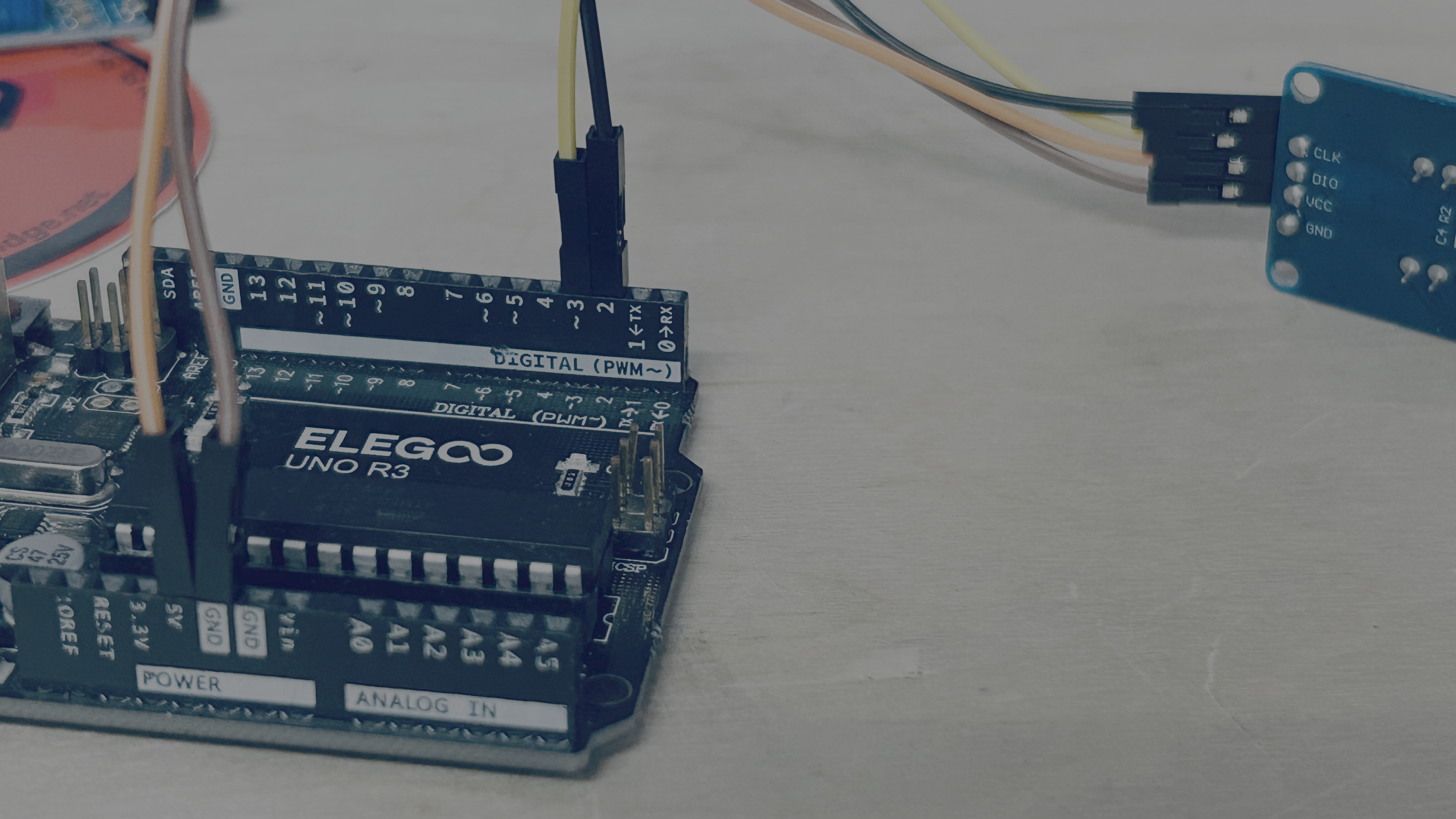
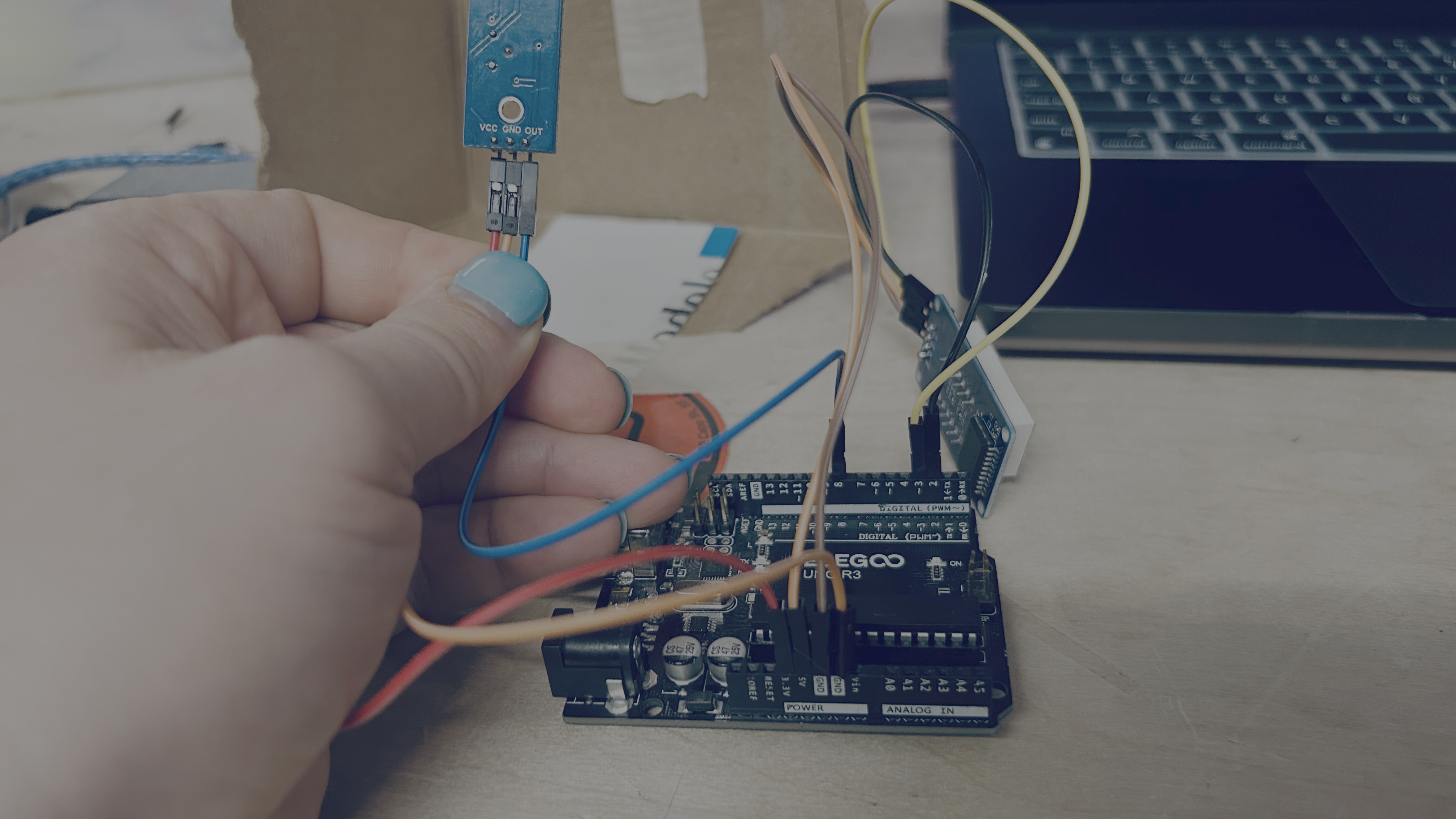
Digital Display Wiring
| Arduino Pin | Component | Component Pin |
|---|---|---|
| 5V | TM1637 Display | VCC |
| GND | TM1637 Display | GND |
| D2 | TM1637 Display | CLK |
| D3 | TM1637 Display | DIO |
| 3.3V | IR Sensor | VCC |
| GND | IR Sensor | GND |
| D8 | IR Sensor | OUT |
LCD Screen Wiriing
| Arduino Pin | Component | Component Pin |
|---|---|---|
| 5V | LCD | VCC |
| GND | LCD | GND |
| A4 | LCD | SDA |
| A5 | LCD | SCL |
| 3.3V | IR Sensor | VCC |
| GND | IR Sensor | GND |
| D8 | IR Sensor | OUT |
Digital Display Libraries
#include <TM1637Display.h>
Library used:
- TM1637Display
LCD Library
How it Works
- The Arduino waits for the IR sensor to detect a ball.
- When a ball is detected, the score increases by 2.
- The updated score is shown on the 4-digit display.
- Typing
RESTARTinto the Serial Monitor resets the score to zero.
Possible Improvements
- Add a countdown timer.
- Add sound effects with a buzzer.
- Track the highest score.
- Add RGB lighting.
- Make the point value configurable.
Lessons Learned
- Position the IR sensor carefully for reliable scoring.
- Allow enough space so the ball doesn't repeatedly trigger the sensor.
- The TM1637 display is simple to wire and only requires two digital pins.
Digital Dispaly Code
#include <TM1637Display.h>

TM1637Display display(2, 3);
int score = 0;
void setup() {
    Serial.begin(115200);
    display.setBrightness(7);
    pinMode(8, INPUT);
    display.clear();
}

void loop() {
    if (Serial.available()) {
        String restart = Serial.readStringUntil('\n');
        if (restart == "RESTART") {
            score = 0;
            display.clear();
        }
    }

    if (!digitalRead(8)) {
        score += 2;
        display.showNumberDec(score);
        delay(1900);
    }
}
LCD Version Code
#include <LiquidCrystal_I2C.h>

LiquidCrystal_I2C lcd(0x27,20,4);  // set the LCD address to 0x27 for a 16 chars and 2 line display

int score = 0;
void setup() {
    Serial.begin(115200);
    lcd.init();                      // initialize the lcd
    lcd.backlight();
    pinMode(8, INPUT);
    lcd.setCursor(0,0);
    lcd.print("Play Basketball!");
}

void loop() {
    if (Serial.available()) {
        String restart = Serial.readStringUntil('\n');
        if (restart == "RESTART") {
            score = 0;
            lcd.setCursor(0,1);
            lcd.print("                ");
        }
    }

    if (!digitalRead(8)) {
        score += 2;
        lcd.setCursor(0,1);
        lcd.print("                ");
        lcd.setCursor(0,1);
        lcd.print("Score: ");
        lcd.setCursor(7,1);
        lcd.print(score);
        delay(1000);
    }
}